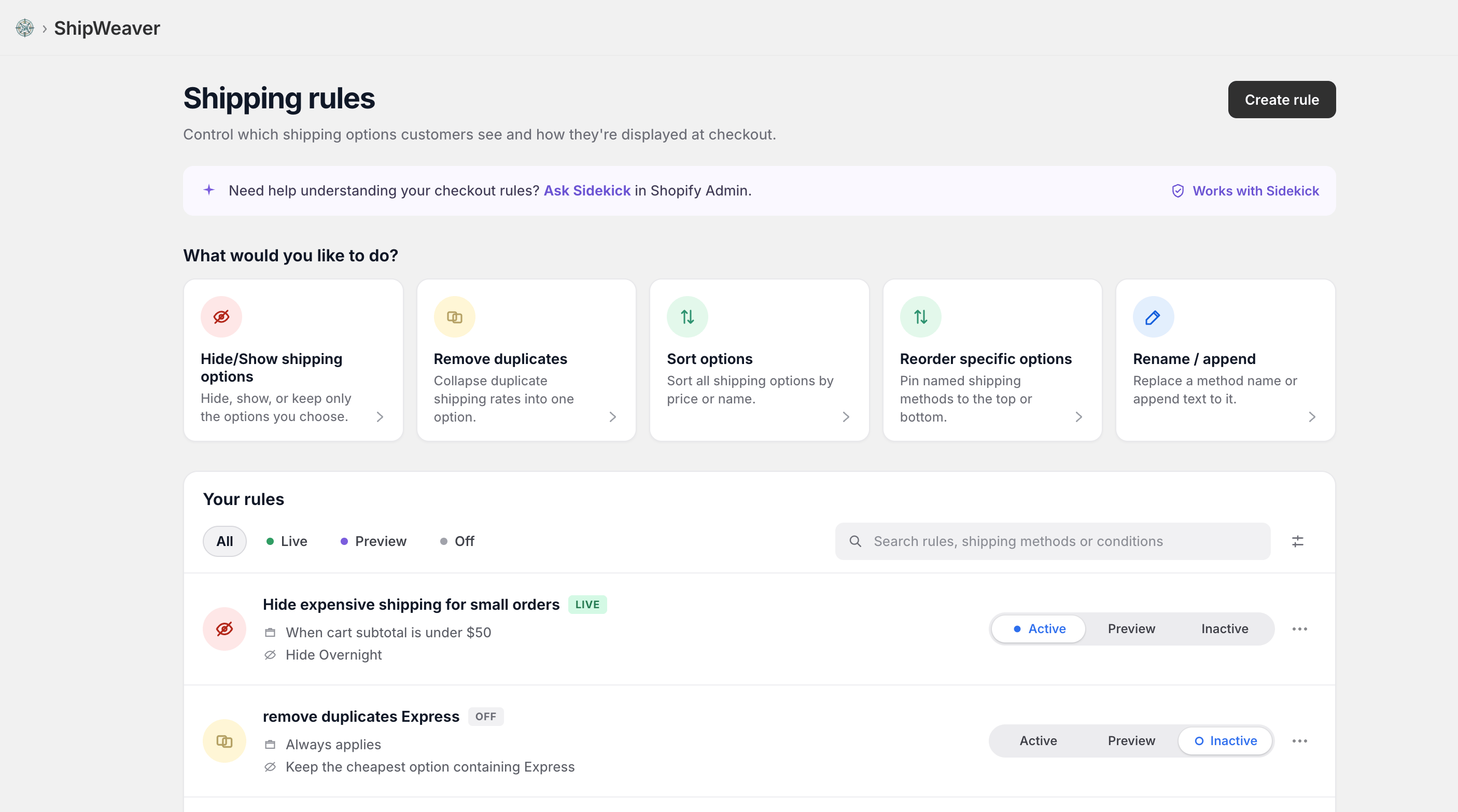
Hide/Show is the job. Pair it with a ZIP or method-title condition for the local zone.
What Shopify offers, and what it does not
You can create a local delivery zone in Settings > Shipping and delivery, add ZIPs or cities, and set a free or flat local rate. Shopify does not automatically hide other shipping methods when that local option is eligible. If your national zone also covers the same area, both lists appear. Native workaround: exclude local ZIPs from the general shipping zone. That is manual, easy to get wrong, and cannot add cart or product conditions.Common examples
Hide shipping when Local Delivery is present
Condition: A method title contains Local Delivery Action: Hide methods that do not contain Local Delivery Inside the local zone, only local delivery remains. Outside it, local delivery is not eligible, so only shipping appears.Hide Standard and Express when local is available
Condition: A method containing Local Delivery is present Action: Hide methods containing Standard or ExpressHide shipping by ZIP prefix
Condition: Shipping ZIP starts with 902 Action: Hide methods containing Standard, Express, or ShippingHeavy items still ship
Rule 1: Cart contains tagheavy: hide Free Local Delivery
Rule 2: Cart does not contain heavy and Local Delivery is present: hide Standard and Express
Light local carts see only local delivery. Heavy carts see shipping.
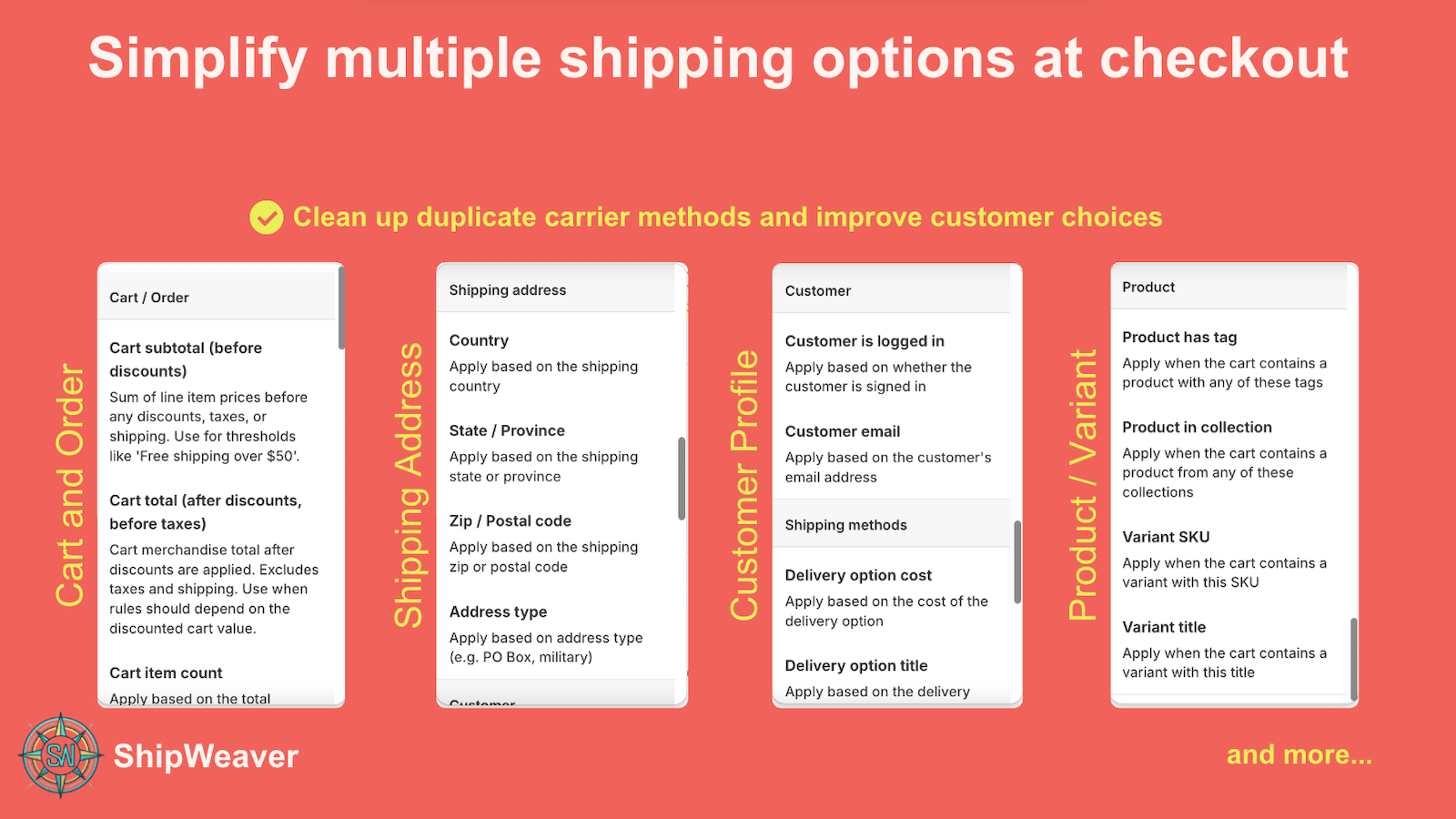
Use address and cart conditions together. Test a local ZIP and a non-local ZIP in Preview.
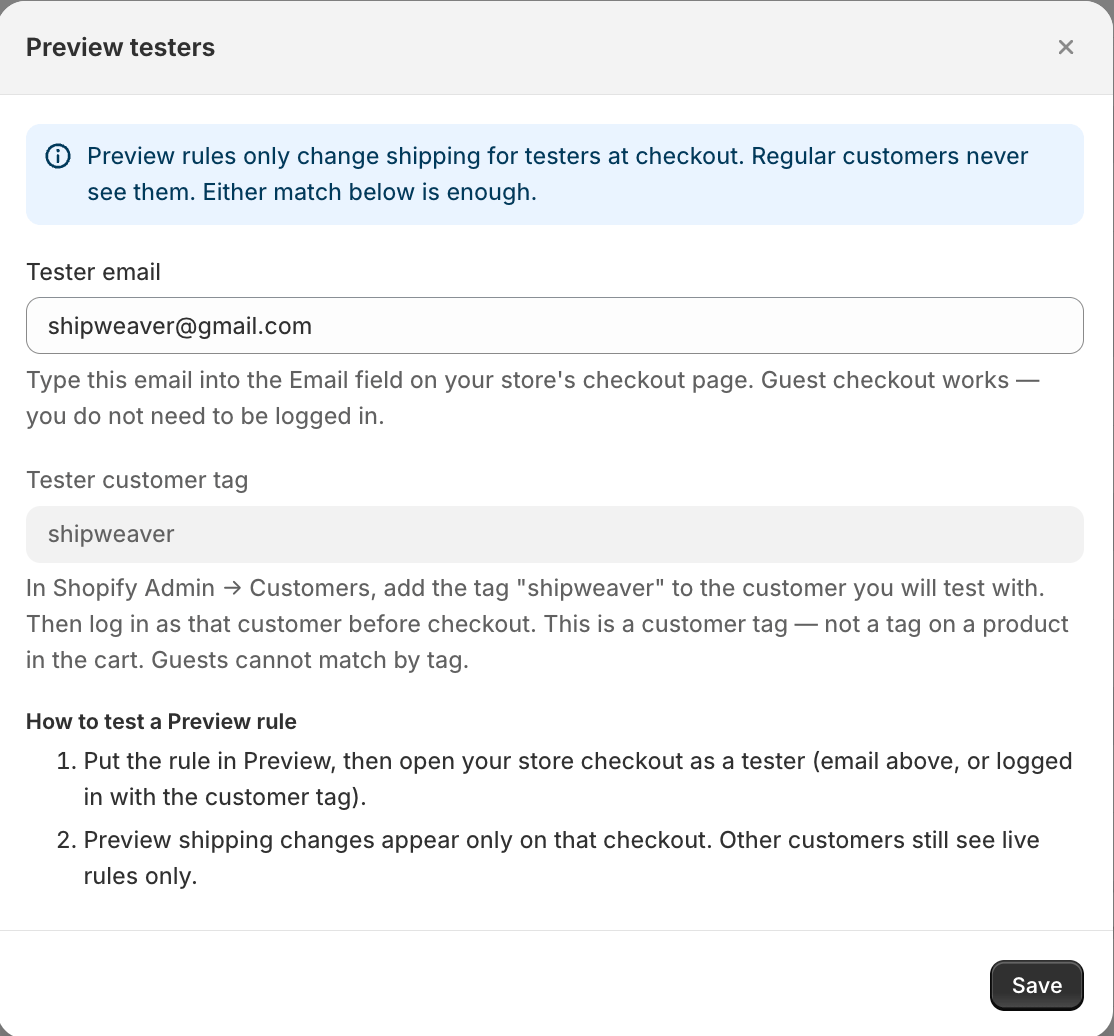
Preview testers confirm both addresses before you set the rule Live.
Using ShipWeaver
Name the local method clearly (Free Local Delivery) so rules can find it. Hide shipping when that method is present, or when the ZIP matches your radius.
Install from the Shopify App Store. Related: Hide shipping methods and Hide by ZIP code.