ShipWeaver runs after Shopify has already calculated eligible shipping rates. A rule then hides, keeps, renames, or reorders those rates before checkout shows them.
1

Shopify calculates eligible rates

Zones, profiles, and carrier apps decide which methods exist for the cart and destination.
2

ShipWeaver applies matching Live rules

Rules run in priority order. When two rules affect the same method, the higher-priority rule wins.
3

Checkout shows the result

Customers see the filtered, renamed, and ordered list, including Shop Pay.
If every method is hidden, customers cannot complete checkout. Leave at least one visible option, and use Preview before going live.

Create a rule

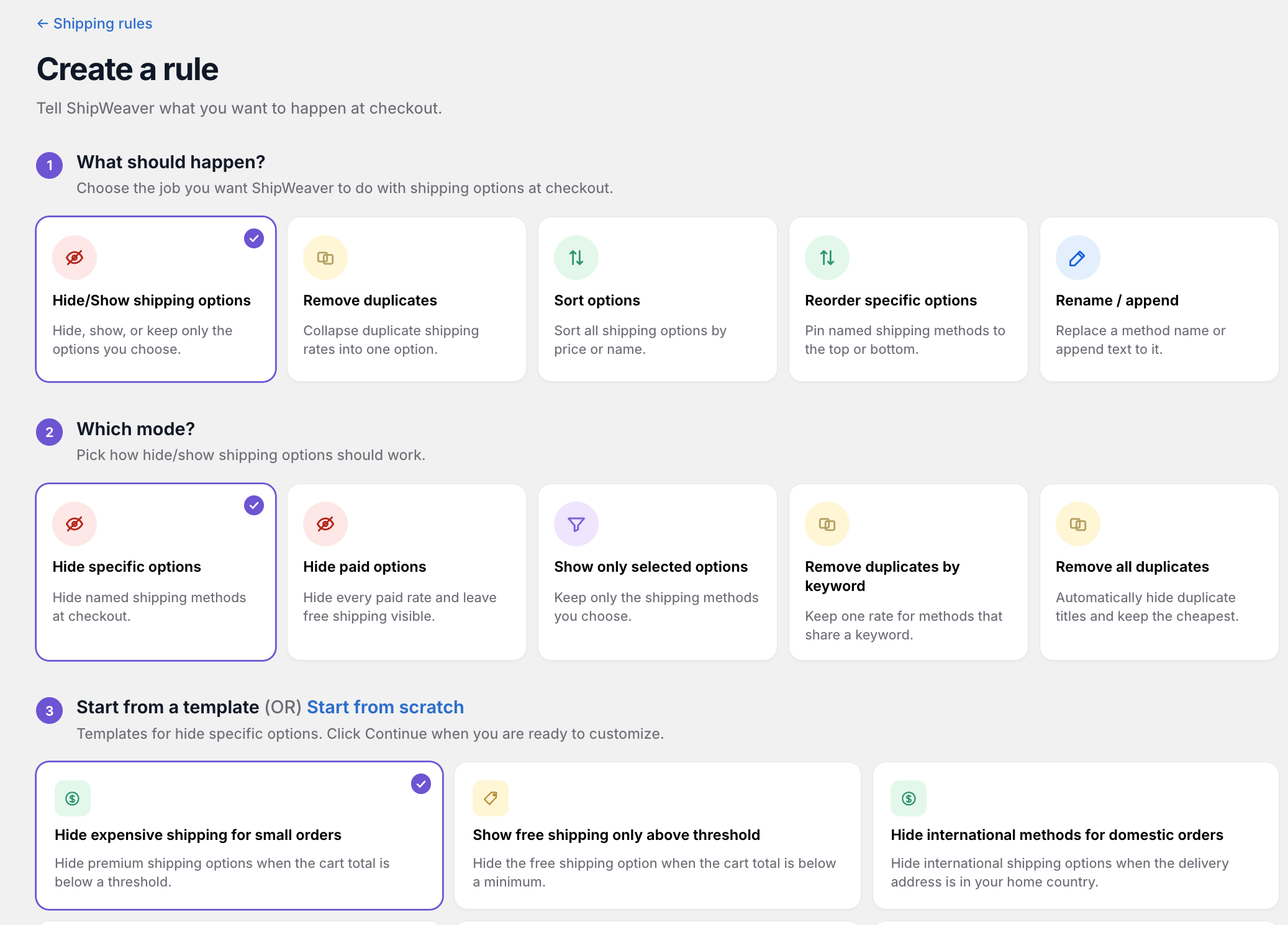
Create a rule wizard with Hide/Show selected, Hide specific options mode, and Hide expensive shipping for small orders template

Choose the job, the mode, then a template or start from scratch.

Edit the action and conditions
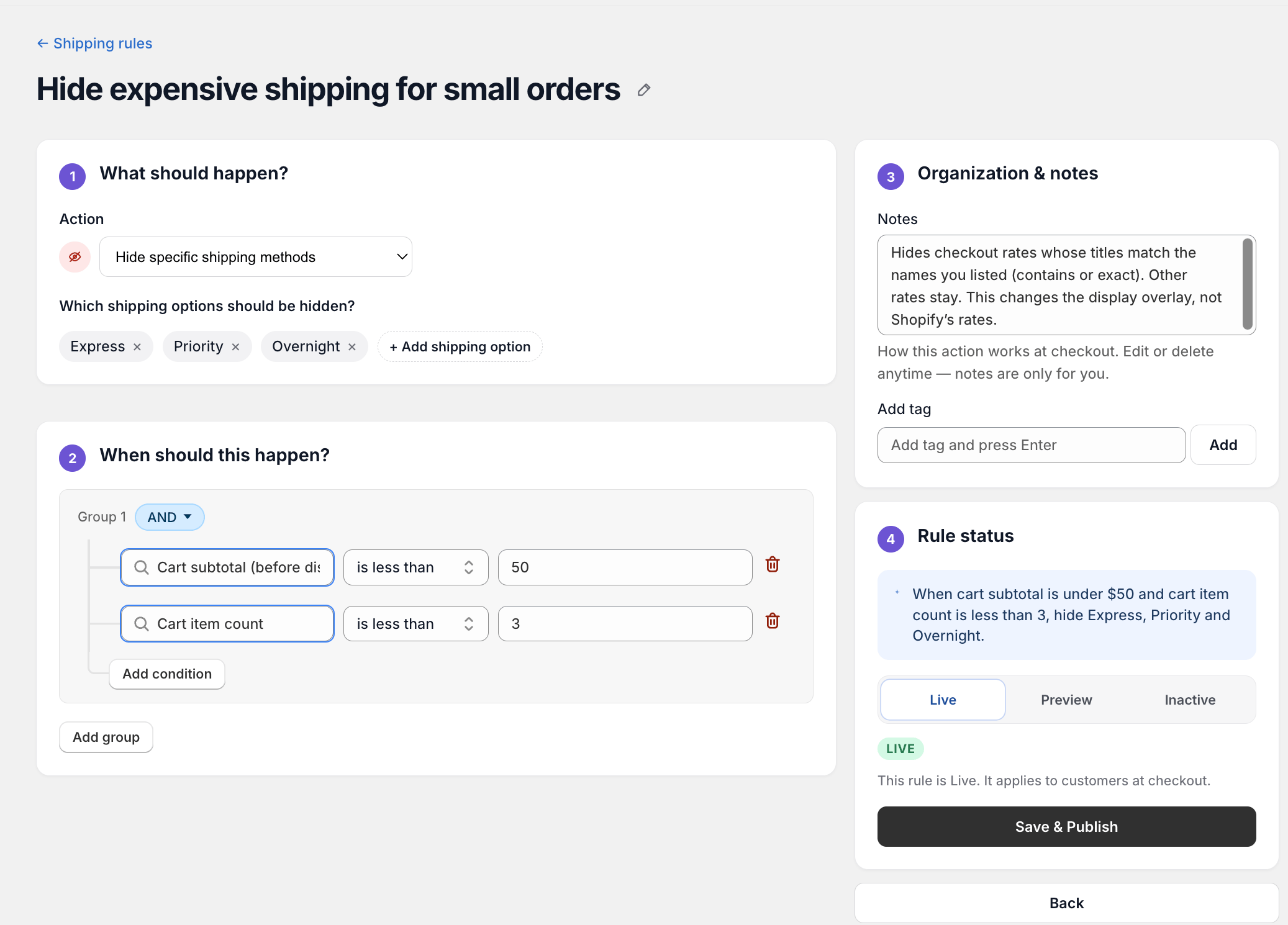
Rule editor hiding Express, Priority, and Overnight when cart subtotal is under $50 and item count is less than 3

The editor is an action, condition groups, and a Live / Preview / Inactive status.

The sidebar restates the rule in plain language before you publish:
When cart subtotal is under $50 and cart item count is less than 3, hide Express, Priority and Overnight.

Conditions you can use
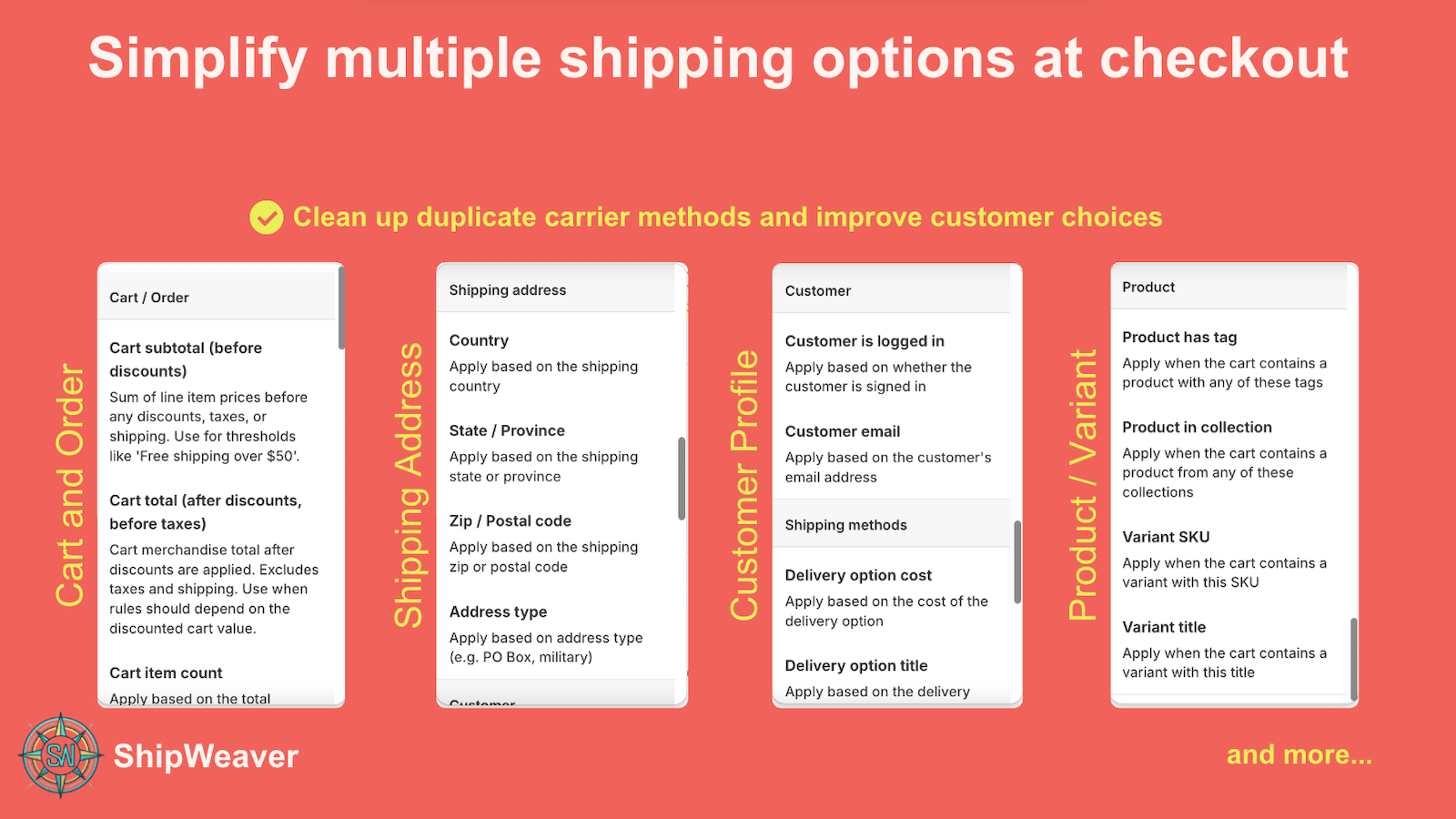
ShipWeaver condition categories: cart and order, shipping address, customer profile, and product or variant

Cart, address, customer, and product fields. Combine them instead of maintaining extra Shopify zones.

See the full catalog on Conditions and Actions.

Priority and sync

Rules run in priority order. A lower number wins. Reorder the list when two rules target the same method. Rules sync to Shopify when you save or activate them. If checkout is stale, sync again from the app. See Support.