Common questions about customizing delivery options at Shopify checkout.
ShipWeaver is a Shopify app that lets you customize how shipping and delivery options appear during checkout. You can hide, rename, reorder, and sort shipping methods based on cart contents, customer location, product tags, and more.
No. ShipWeaver only changes how shipping options are displayed at checkout. It does not calculate rates, set prices, or integrate with carriers. Your existing shipping setup stays the same.
Changes apply in the Shopify checkout when customers select a shipping method. They do not affect the Shopify admin, orders, or any other part of your store.
Preview rules apply only to testers, not regular customers. Configure your tester email in the app. Customers with that email or the shipweaver customer tag see Preview rules. Everyone else sees only Live rules.
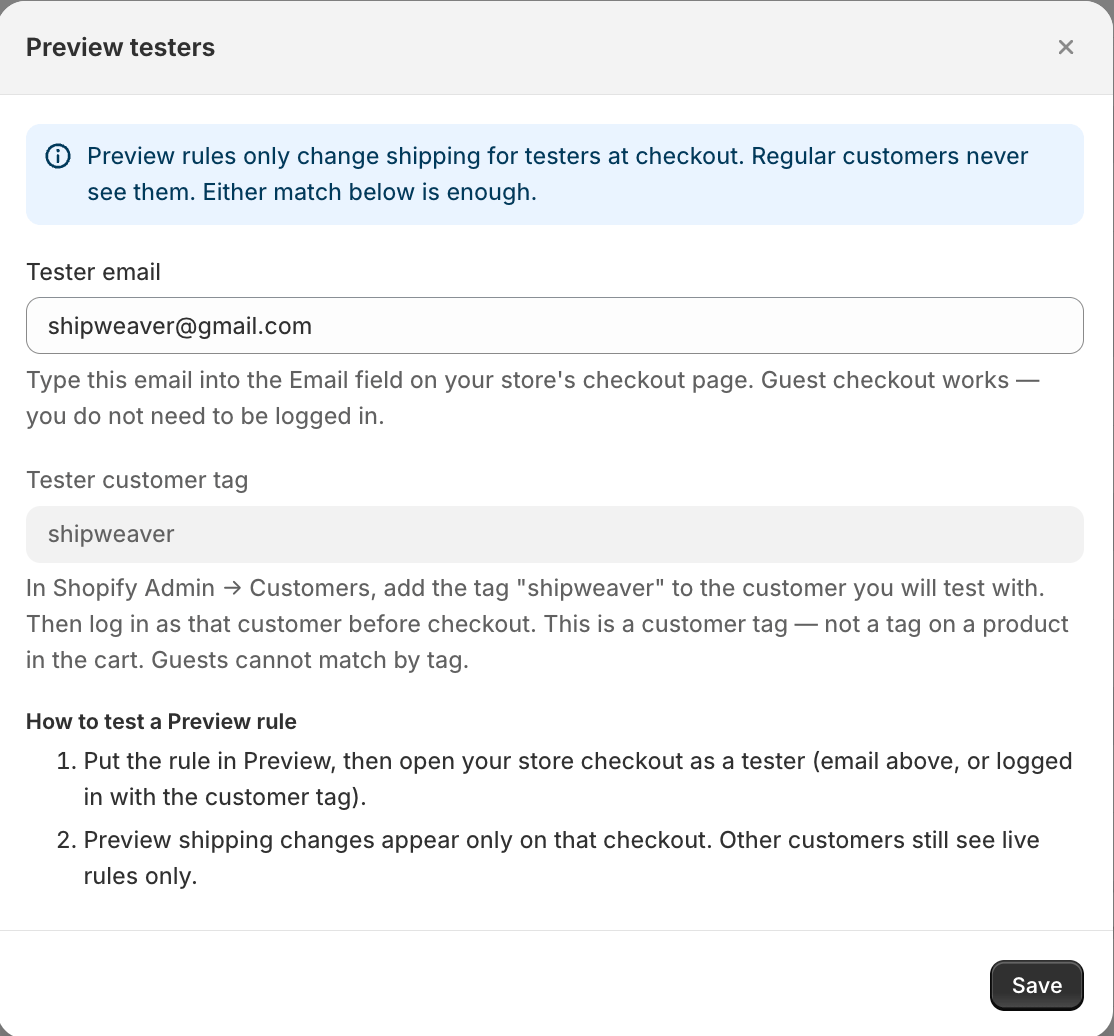
Preview testers modal explaining that regular customers never see Preview rules

Either tester email or the shipweaver customer tag is enough.

Create a rule and set its status to Preview. Add your email in tester configuration, or tag a test customer with shipweaver. Check out as that tester. When you are satisfied, set the rule to Live.
Rules run in priority order. A lower number is higher priority. The first rule that matches a shipping option applies. If multiple rules affect the same option, the higher-priority rule wins. Reorder rules in the app to change priority.
Check that:
  1. The rule is Live or Preview, not Off
  2. Conditions match the current checkout
  3. Rule priority is correct
  4. Rules have been synced
For Preview rules, confirm you are checking out as a tester.
Rules sync when you save, activate, or bulk-update them. Saving or deploying triggers a sync. If checkout is stale, use Sync in the app.
Yes. Choose a template such as free shipping over a threshold or hide Express for a PO Box, then customize it. You can also create rules from scratch. See Templates.
Standard gives you address, cart, product tags, collections, variant SKU or title, and delivery option data. Cart and line attributes gives you cart attributes and line item attributes. Pick the type that matches your conditions.
Yes. Use the duplicate action on any rule. The copy starts as Inactive. Edit it and activate when ready.
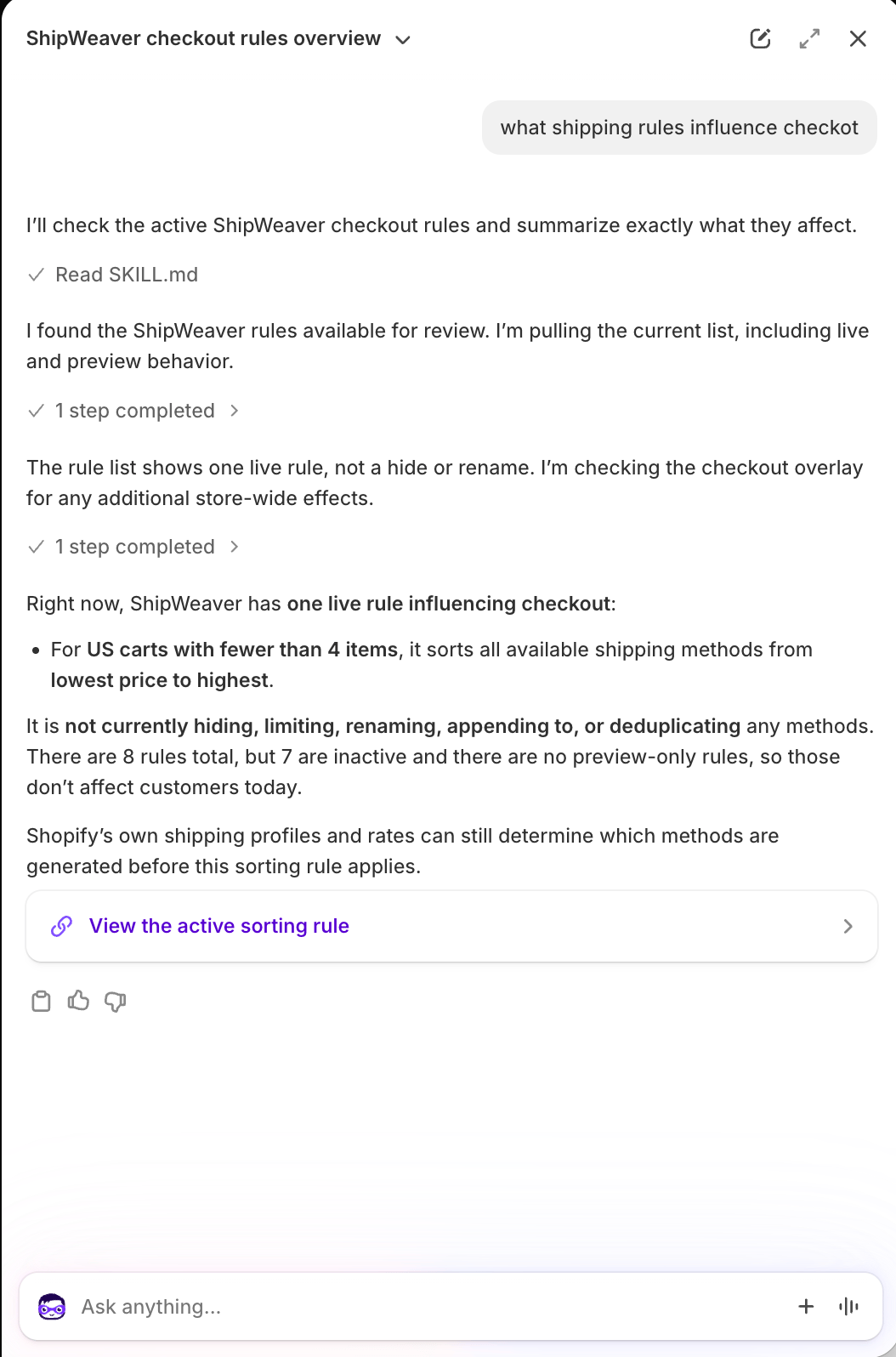
Yes. Ask Sidekick in Shopify Admin about checkout options. It can read ShipWeaver rules and your shipping profiles.
Sidekick explaining a live sort rule for US carts with fewer than 4 items

Sidekick summarizing live and inactive ShipWeaver rules.

Yes. ShipWeaver uses Shopify delivery customizations, which run server-side during checkout. Shop Pay and other accelerated checkouts see the same filtered, renamed, and ordered methods.
Yes. That is a common reason duplicates appear. Shopify Shipping, flat rates, and carrier-calculated rates can all show at once. ShipWeaver can hide extras, keep the cheapest Ground option, or rename titles so they match.
Sort orders every method by price or name. Reorder pins specific methods (Free Shipping, Express) to the top or bottom. Use sort for a consistent list. Use reorder when one named method should always appear first.
Customers cannot complete checkout. Always leave at least one visible option. Test hide rules in Preview with a real cart and destination before setting them Live.
Yes. Some templates include a date range, for example a holiday Express cutoff. The rule only applies during that window.
All shop data is deleted when you uninstall, or when Shopify sends a shop/redact request. See the Privacy Policy.
For action and condition catalogs, see Actions and Conditions.